
Save a Teams chat as PDF.
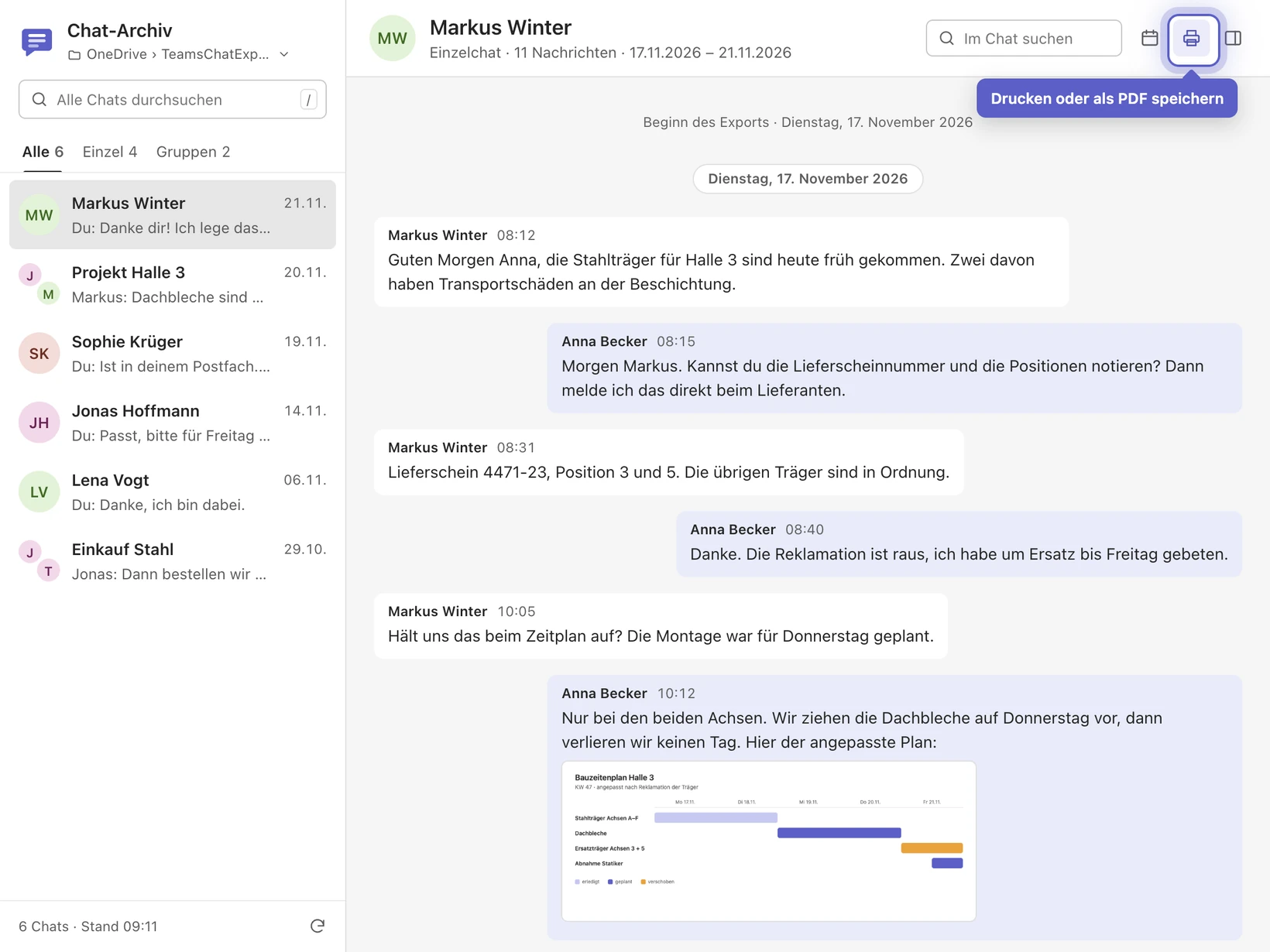
Save a Teams chat as PDF: with the Teams Chat Exporter you export the complete history of a chat or channel. In the archive you click “Print or save as PDF” and store the PDF. Images, replies and timestamps are kept.
What is in the PDF
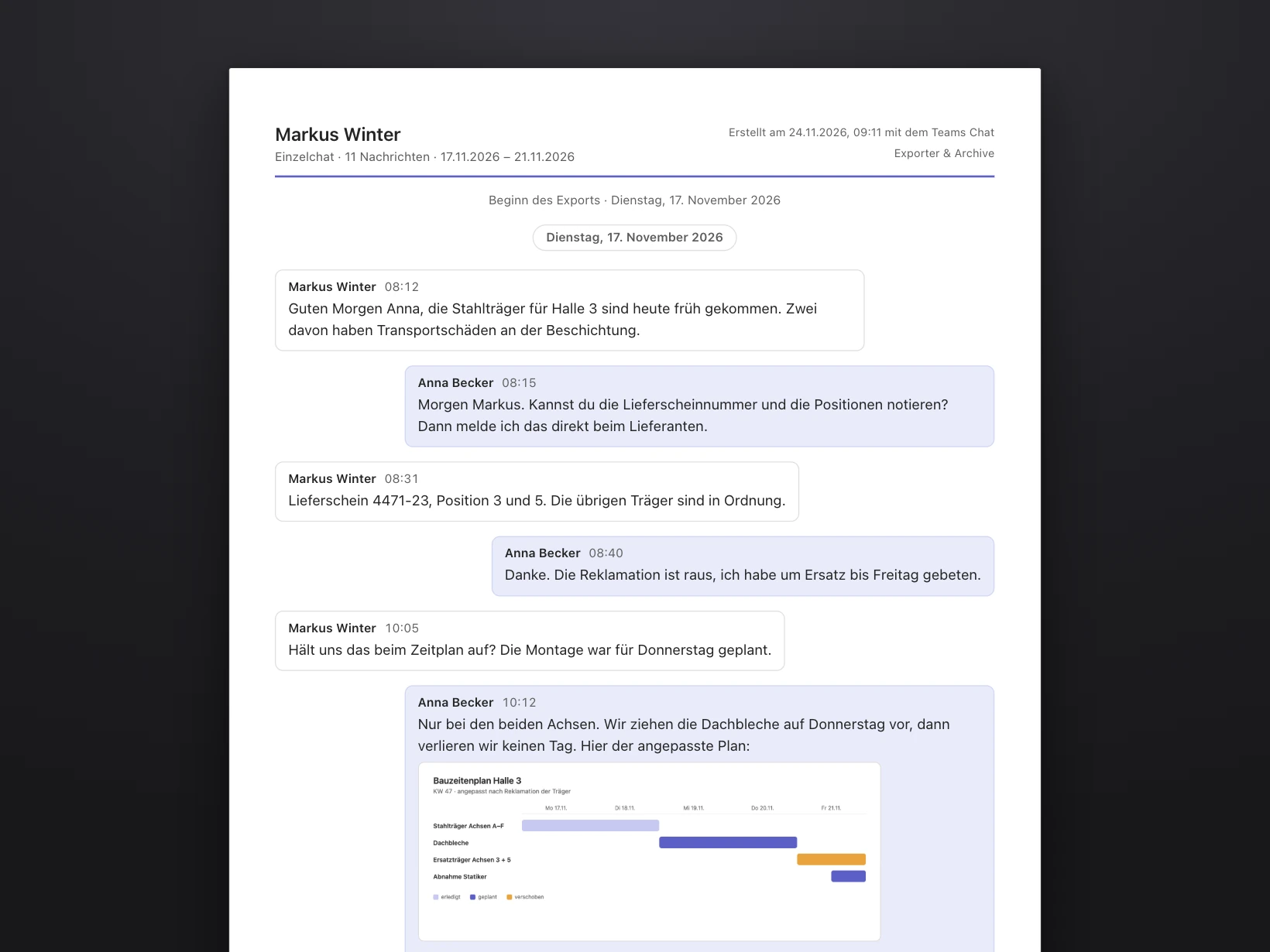
Header
Chat name, number of messages, time period and creation date.
Messages
Every message with sender and time, grouped by day.
Replies
Replies appear with a quote of the original message.
Images
Inserted images stay visible in the history.
How to save the chat as PDF
You export the chat directly in Teams, without an IT project.
Then you open it in the archive and save it as a PDF.
- Select a one-on-one, group or meeting chat or a channel and export it
- Open the chat in the archive and click “Print or save as PDF”
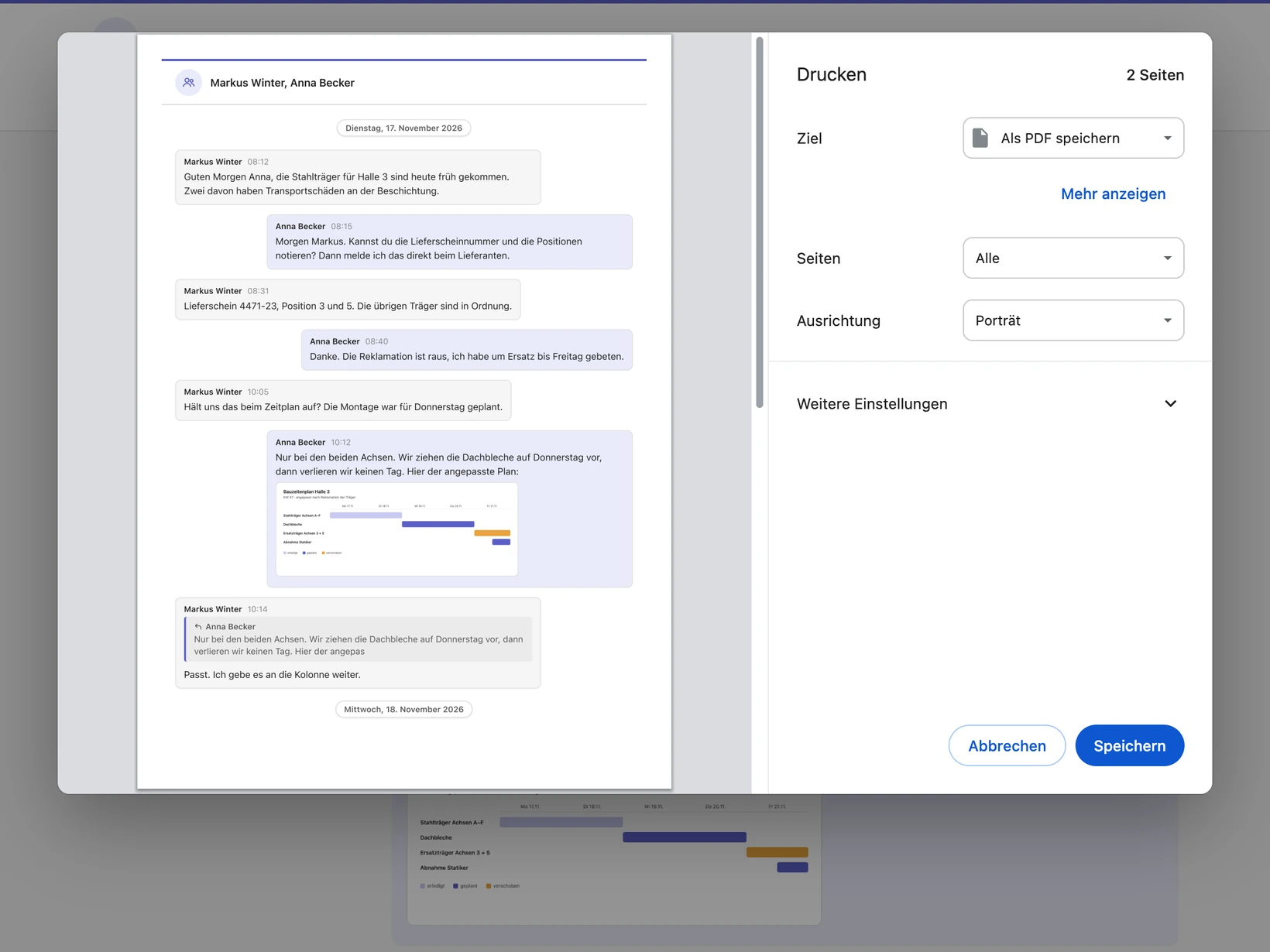
- Choose “Save as PDF” in the print dialog
Print a Teams chat
In the browser, Teams itself only prints single messages. The export contains the whole history and is prepared for printing.
In the same dialog, simply choose your printer instead of “Save as PDF”. The dialog shows in advance how many pages the chat has.
Search, filters and buttons do not appear in the printout.
Save a Teams chat as PDF without a tool
Without extra software there are two ways. They work for short chats, but with long histories older messages or images are easily missing.
- Print single messages in Teams for the web and save them as PDF
- Copy the history section by section into Word and save it as PDF
Your data stays in your tenant
The export runs entirely in your Microsoft 365 environment, without a third-party system.
Only what the person has access to is exported.
IT installs the app once in about 20 minutes.
Documentation
How it works in detail
The documentation is currently available in German only.

Questions about saving Teams chats as PDF?
In 30 minutes I show you the Teams Chat Exporter and answer your questions. The call is free and without obligation.
Jérémie Constant · Product developer and point of contact
Book a callFAQ
Frequently asked questions
Can you save a Teams chat as PDF?
Yes. Export the chat with the Teams Chat Exporter, open it in the archive and click “Print or save as PDF”.
Can I print a Teams chat?
Yes. With the same button you print the whole chat on any printer.
Are images and attachments in the PDF?
Inserted images appear in the PDF. Attached files are kept as originals in a folder next to the export.
Does this work for channels and group chats?
Yes. One-on-one, group and meeting chats as well as channels can be exported.
What is not in the export?
Reactions, meeting recordings and files that were only linked and not attached. Such links stay in the export as links.
You may also be interested in
Try the Teams Chat Exporter for free
Request the trial version and export your chats in your own Microsoft 365 environment.
See for yourself.
Arrange a no-obligation product demo or contact us directly by phone or e-mail. For enterprise customers a free trial version is also available.
- 0221 - 29245920
- info@novalutions.de
- Request enterprise trial
- Luxemburger Str. 150, Cologne